This manual is the detailed technical reference for FramePort: HDMI and USB video capture inside VS Code. It describes architecture, interfaces, programming model, verification, implementation, and performance in one numbered, navigable document.
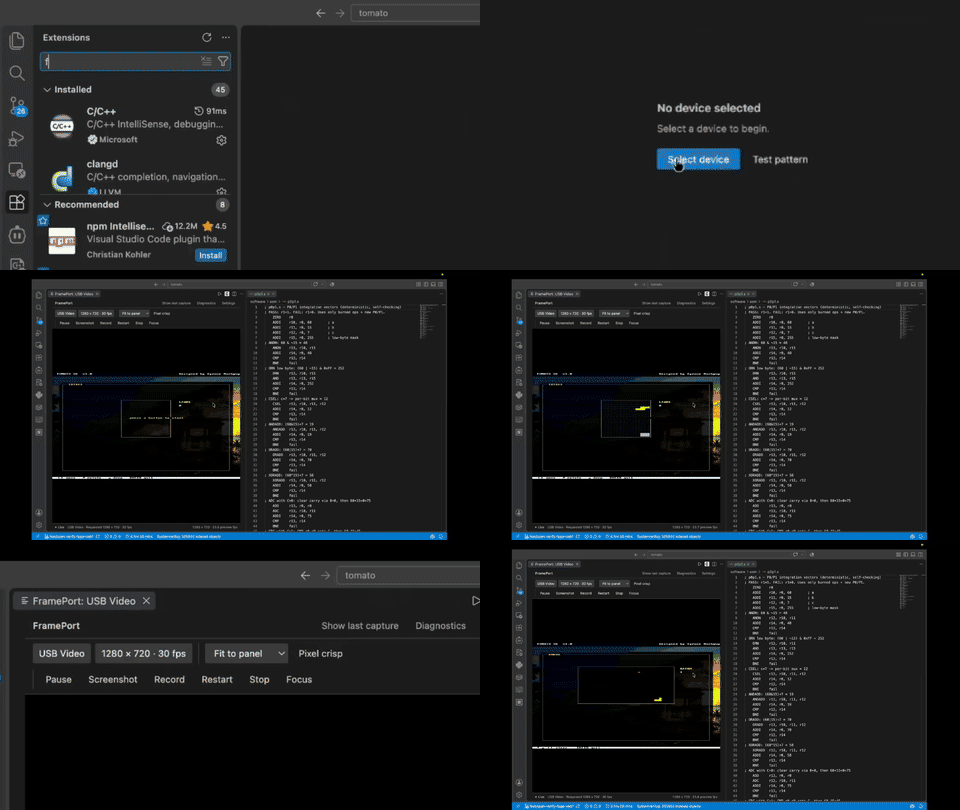
Live capture inside VS Code — click the preview for the full clip.
HDMI capture directly inside VS Code.
The concise project overview stays in the repository
root README.
Executable sources under src/ win over this prose when they disagree;
docs/DEVELOPMENT.md, docs/DESIGN.md, docs/PUBLISHING.md, and
CHANGELOG.md are the current facts. Dated entries under docs/log/
are history and never authoritative for current status.
# Build this manual locally (requires Asciidoctor, no Node.js)
make docs
# Output: build/docs/index.html
The left table of contents is collapsible.
Select an arrow (▸ / ▾) to expand or collapse a chapter;
selecting the chapter title itself navigates normally.
State persists in your browser via localStorage.
With JavaScript disabled, the full table of contents remains usable.
|
1. Introduction
This chapter states what FramePort is, what it is not, and how to read the rest of the manual.
1.1. Purpose and scope
FramePort is a VS Code extension that opens an HDMI capture card or other USB video device in an editor tab. It shows the feed beside your code, inspects individual pixels, saves a PNG screenshot, and records a silent MP4 clip without a separate video application.
What FramePort is not:
-
No audio capture, editing, broadcasting, or phone screen mirroring.
-
No background service or network video upload; capture starts only on an explicit action (see Architecture).
-
Device capture is tested on macOS; Windows capture via FFmpeg
dshowis new in0.2.4; Linux shows a test pattern only. -
Desktop VS Code
1.95+in a trusted local workspace only. Remote, browser-only, and untrusted workspaces are unsupported.
Section Architecture defines the data path. Section Verification defines what has been checked and how to reproduce it. Section Known limitations states explicit non-claims.
1.2. How to read this manual
-
Chapters, sections, and subsections are numbered (
sectnums). -
The left navigation mirrors the document hierarchy and collapses per chapter; see the tip on the title page.
-
Cross-references such as Interfaces navigate within this single-page manual.
-
External links (for example VS Code webview UX, the design reference for this project) open the referenced site.
1.3. Conventions
Inline code such as frameport.previewFps, FramePort: Take Screenshot,
or media/screenshots denotes settings, commands, or paths.
File paths such as src/recorder.js are repository-relative.
Three rates are never merged:
-
Requested mode — the resolution/frame rate asked of the device.
-
Observed FPS — frames actually rendered in the preview.
-
Encoded frames — frames the recorder confirmed into the MP4.
1.4. Source map
The editable authorities for this project are:
| Question | Authority |
|---|---|
Capture arguments and JPEG framing |
|
Capture lifecycle |
|
Recording and finalization |
|
Screenshot limits and validation |
|
Commands, dialogs, settings |
|
Panel markup, rendering, controls |
|
Commands and settings contract |
|
UI constraints |
|
Development and test workflow |
|
Release workflow |
|
Historical rationale |
|
Generated captures under media/screenshots/ and media/videos/ are
derivatives, not editable authorities.
2. Architecture
This chapter describes the running system: where capture happens, where
frames flow, and which blocks own what. Authority: src/.
2.1. Overview
FramePort runs in the local UI extension host. It starts no capture until an explicit action (open, select device, test pattern). The frame endpoint binds to loopback with an unpredictable session path behind a restricted webview CSP. There is no background service and no network video upload.
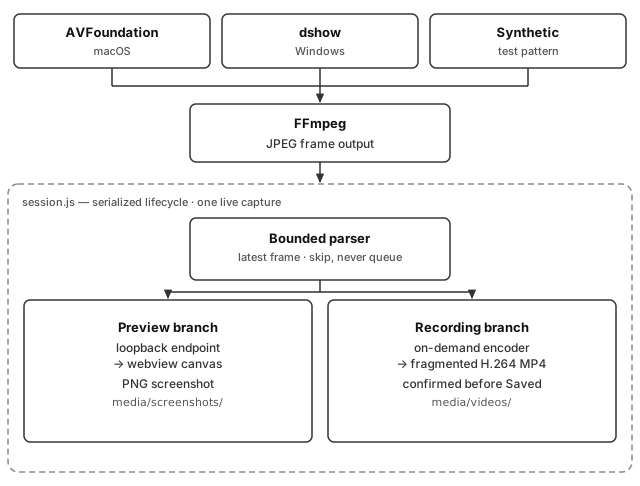
Figure provenance: hand-rendered SVG from docs/diagrams/capture-pipeline.mmd.
Device sources differ per OS (see Known limitations); the pipeline after
FFmpeg is identical.
2.2. Block inventory
| Block | Responsibility | Owns (state / artifacts) |
|---|---|---|
|
Source enumeration, FFmpeg capture arguments, JPEG framing |
Device list, requested modes, frame parser |
|
Serialized capture lifecycle, stale-callback cancellation |
One live capture at a time |
|
Bounded encoder input, progress parsing, output confirmation, finalization |
MP4 output, encoded-frame count |
|
Screenshot limits, validation, saved-file action selection |
PNG output, size refusal |
|
Commands, dialogs, settings, local server, coordination |
Panel lifecycle, save destinations |
|
Theme-aware markup, rendering, controls, accessibility |
Displayed frame, toolbar state |
| If a behavior is not in Interfaces, it is not a contract. Change it freely; changing an interface table is a breaking change. |
2.3. Data flow
Frames leave the bounded parser on two independent branches:
-
The preview branch serves the latest frame to the webview canvas. Pause freezes this branch only; capture and recording continue.
-
The recording branch feeds the current capture into an on-demand encoder. Encoder progress must confirm frames before Saved is reported; arrival-time timestamps are approximate.
Normal teardown finalizes recording before replacing the source. Interrupted files are retained, never silently deleted. See Design.
3. Design
This chapter records how the blocks in Architecture realize the pipeline. It is an implementation description, not a second contract.
3.1. Capture and session
src/capture.js enumerates sources and builds the FFmpeg capture
arguments per OS (AVFoundation on macOS, dshow on Windows, synthetic
test pattern elsewhere). It frames the JPEG output stream for the
bounded parser, which keeps the latest frame and skips — never queues —
under load.
src/session.js serializes the capture lifecycle so restarts never
touch the device concurrently. Stale callbacks and frames from a stopped
or replaced capture are discarded.
3.2. Recorder
src/recorder.js reuses the current capture feed; it never reopens the
device. The encoder input queue is bounded. Success requires all of:
accepted input frames, confirmed encoded frames from FFmpeg progress on
a separate pipe, a clean encoder exit, and nonempty output. A header-only
file with accepted input still reports failure.
3.3. Screenshot
src/screenshot.js saves the displayed frame — including a paused
frame — as PNG. Oversized captures fail visibly on client and host
instead of disappearing. Reveal destinations are local-file only.
3.4. Panel and preview
src/view.js with media/preview.js and media/preview.css renders
the theme-aware panel. Rules from docs/DESIGN.md:
-
Follow VS Code theme colors and typography, including light and high-contrast themes. Only the live-video surface stays black.
-
No brand palette, gradients, glows, glass, hero sections, or slogans in the capture panel. Short operational labels; errors state what failed and what to try.
-
Show real measurements only. Requested settings and observed output are labeled separately.
Preview pacing uses deadline-based scheduling so a 30 fps cap delivers near 30 unique frames; per-frame layout work runs only when dimensions, scaling, or smoothing change. FPS sampling resets on pause and tab visibility changes.
3.5. Error handling
Errors are part of the design:
-
Input errors — unwritable filename, oversized screenshot, missing encoder in the FFmpeg build. Reported with the next action.
-
Capture errors — device held by another app, dropped HDMI, bad mode. Reported with permissions, cable, and lower-mode steps.
-
Toolchain errors — FFmpeg missing or not on VS Code’s PATH. Reported with the Homebrew install, guide, or settings actions.
Each class names its recovery in Programming model.
4. Interfaces
This chapter defines every boundary another user or system touches:
commands, settings, capture modes, save destinations, and the FFmpeg
tool boundary. Authority: package.json, src/.
4.1. Conventions
-
Requested capture settings and observed preview output are labeled separately everywhere. A requested mode is never a measured result.
-
Screenshot and recording destinations are local files only.
4.2. Commands
| Command | What it does |
|---|---|
|
Open the capture panel. |
|
Pick a source and requested mode. |
|
Save the displayed frame as PNG. |
|
Record silent H.264 MP4; never overwrites. |
|
Restart capture on the current source. |
|
Release the device. |
|
Inspect FFmpeg output on failure. |
|
Reveal the last PNG/MP4 in the file manager. |
4.3. Settings
| Setting | Default | Use |
|---|---|---|
|
|
Executable override (for example |
|
|
Preview cap: |
|
|
|
|
|
Capture root: workspace-relative, absolute as-is, else |
|
|
PNG subfolder under the save root. |
|
|
MP4 subfolder under the save root. |
|
|
|
|
|
|
4.4. Capture modes
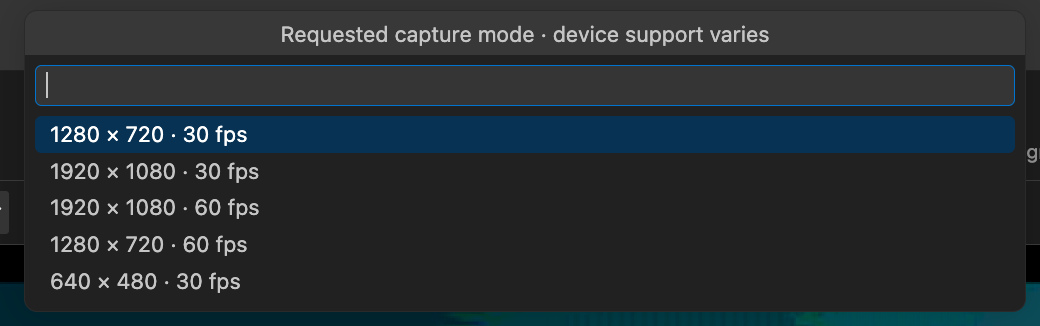
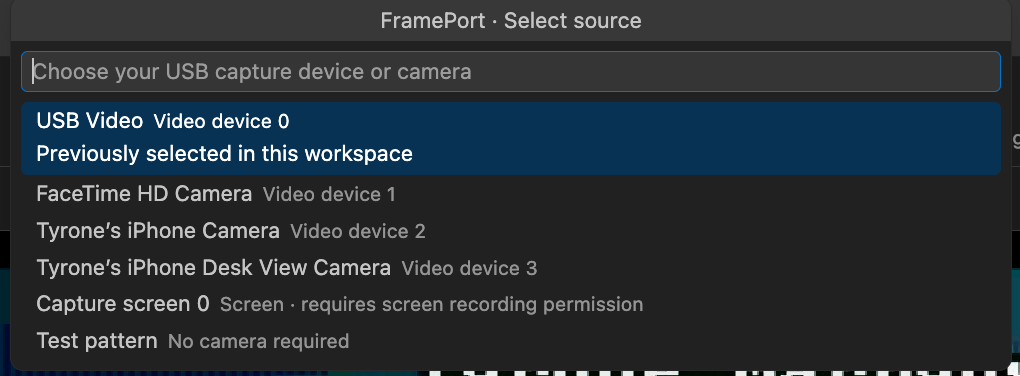
Modes are requested per device, not probed capabilities. Screen sources capture at native size with a separate FPS choice; the footer never reports an unapplied camera resolution.
4.5. Save destinations
Screenshots autosave as PNG under the screenshot folder; recordings as silent H.264 MP4 under the video folder. Closing the panel finalizes an active recording first. Deleted last-capture files report a clear message instead of failing silently.
4.6. FFmpeg boundary
FramePort requires FFmpeg with libx264 on PATH. On macOS it also
checks /opt/homebrew/bin/ffmpeg and /usr/local/bin/ffmpeg, or the
frameport.ffmpegPath override. ffprobe next to the configured
FFmpeg serves the integration tests (FRAMEPORT_TEST_FFMPEG,
FRAMEPORT_TEST_FFPROBE overrides). If FFmpeg is missing, FramePort
offers a Homebrew install on macOS, the download guide, or settings —
never a dead end.
4.7. Host sandbox
The extension runs in the local UI extension host and is unsupported in
remote, browser-only, and untrusted workspaces
(untrustedWorkspaces and virtualWorkspaces are false). Camera and
screen-recording permission is requested by macOS when needed.
5. Programming model
This chapter shows how to drive FramePort. Every claim here is executable or directly checkable.
5.1. Quick start
-
Install
0.2.4from the VS Code Marketplace or Open VSX, or installframeport-0.2.4.vsixvia Extensions: Install from VSIX…. -
Run FramePort: Open Capture Device, then Select device — or Test pattern to verify without hardware.
-
Pick a capture mode the device supports. Allow camera access if macOS asks.
-
Use Pause, Screenshot, Record, Focus, and Diagnostics from the panel toolbar or the Command Palette.
Screenshots and recordings autosave to media/screenshots and
media/videos in the workspace (or ~/FramePort with no folder open).
saveMode: ask shows the save dialog, still defaulting into those
folders.
5.2. Settings recipes
// VS Code's PATH differs from the terminal's: pin FFmpeg explicitly.
# Settings → frameport.ffmpegPath → /opt/homebrew/bin/ffmpeg-
Lower preview work without touching capture or recording: set
frameport.previewFpsto15. -
Smaller files everywhere: keep
frameport.recordingEncodersoftware. Lower recording CPU on macOS at the cost of larger files: switch tohardware(VideoToolbox). -
Per-project captures: set
frameport.saveRootto a workspace-relative folder; with no folder open,~/FramePortis used.
5.3. Troubleshooting sequences
-
FFmpeg won’t launch. Use the Install-via-Homebrew / Install-guide actions when offered, or set
frameport.ffmpegPath; then Restart Stream. -
No frames. Check permissions, cables, other apps holding the device, and try a lower mode; then Show Diagnostics.
-
Recording fails. Confirm the encoder exists in the FFmpeg build and pick a new writable filename.
-
Black frames. Some cards emit black when HDMI drops; the video alone cannot always tell. Check the source and cable first.
To see the real missing-FFmpeg modal without uninstalling Homebrew
FFmpeg: set frameport.ffmpegPath to /nonexistent-frameport-ffmpeg,
run FramePort: Open Capture Device or Test pattern, then restore
the setting afterward.
6. Verification
This chapter states what has been checked, with commands that reproduce each claim. Harness results are labeled harness; they never stand in for device permissions or Extension Host behavior.
6.1. Strategy
| Layer | Method | Reproduce |
|---|---|---|
Unit |
Node test runner |
|
Static gate |
Checks |
|
Panel behavior |
Browser harness, mocked VS Code messaging |
|
Host behavior |
Synthetic Extension Host suite |
|
Missing-FFmpeg recovery |
Nonexistent path + mocked API |
|
Missing-FFmpeg in container |
Node image without FFmpeg |
|
Physical device |
One app owns the device |
Manual, see below |
| The table above is the verification contract. A passing harness run does not prove device permissions or host behavior. |
6.2. Focused checks
npm run check
npm test
npm run test:ui
Browser tests need Playwright Chromium
(npx playwright install chromium if absent) and a local port. They
generate screenshots under ignored artifacts/; they test the webview
with mocked messaging, not device permissions or Extension Host
behavior.
npm run test:host opens a real VS Code window in a temporary profile
and never installs the candidate into the normal profile. Set
VSCODE_TEST_BINARY if the binary lives elsewhere.
Missing-FFmpeg recovery is checked without uninstalling host FFmpeg: the suite uses a nonexistent path and a mocked VS Code API, plus the same checks in a Linux container with Node but no FFmpeg binary.
6.3. Physical device vs harness
-
Browser harness means
npm run test:uiwith mocked VS Code messaging. Label its screenshots synthetic; the recording-state shots are explicitly injected states. -
Synthetic host means
npm run test:hostin a temporary profile. It exercises host wiring, not real user permissions. -
Physical device means a camera or capture card owned by exactly one application, with device/mode, FFmpeg version, and contention status recorded alongside the measurement.
For every change, report which checks actually ran — unit, real FFmpeg, browser harness, Extension Host, and physical device — with device, mode, FFmpeg version, and contention status. Never infer hardware latency from preview FPS alone.
7. Implementation
This chapter describes how the checked-in sources become the installable extension and what the build does and does not prove.
7.1. Build flow
npm ci
npm run check
npm test
npm run test:ui
npm run package
npm ci installs development dependencies; no npm dependencies load in
the installed extension. Press F5 to open an Extension Development
Host and hack directly. Guides: docs/DEVELOPMENT.md,
docs/PUBLISHING.md.
Programming the analogy loosely: building a VSIX does not publish a listing. Re-upload the exact reviewed artifact; Marketplace versions are immutable, so listing-only fixes ship as a patch bump.
7.2. VSIX contents
A good archive holds the manifest, README, CHANGELOG, src/, and
runtime media/ only. Excluded via .vscodeignore: tests, scripts,
docs/, artifacts/, test-host/, node_modules, and the demo MP4
(media/screenshots/*.mp4 loads from the repository URL, not the
package). The demo GIF stays packaged so the Extension Details page
plays it offline while the repository is private.
Inspect the actual archive, not only its filename:
unzip -l frameport-0.2.4.vsix
shasum -a 256 frameport-0.2.4.vsix
Install it through Extensions: Install from VSIX… in a clean profile.
7.3. Packaging variants
-
npm run package— standard flow. VSCE rewrites README image paths to repository HTTPS URLs, so publish referenced image files first and check them in the Marketplace preview. -
npm run package:local— adds--no-rewrite-relative-linksso the Details page resolves packagedmedia/screenshots/images offline. Private-preview exception, valid only while the repository is private. -
npm run package:public— standard flow with the license bypass removed. Use after distribution terms are selected.
The manifest preview field is false: the listing is not marked
preview. That flag is not the pre-release channel; choose the channel
deliberately per the current VS Code publishing guide.
8. Performance
This chapter gives the rate, pacing, and size numbers with exact wording. Each number names its domain; domains are never merged.
8.1. Rates
| Quantity | Value | Meaning |
|---|---|---|
Preview cap |
|
|
Source rate |
Device requested mode |
What was asked of the hardware |
Observed FPS |
Measured |
Frames actually rendered; resets on pause and tab visibility changes |
Recording confirmation |
Encoder progress |
Frames confirmed into the MP4 before Saved is reported |
Preview pacing uses deadline-based scheduling so a 30 fps cap delivers near 30 unique frames instead of ~27. One FFmpeg process runs while viewing, one more while recording. Under load, frames are skipped rather than queued, so observed FPS is output throughput, not latency.
8.2. Size and fidelity
-
The transport is JPEG, so PNG screenshots are not lossless.
-
Oversized screenshots are refused with a visible error.
-
Software
libx264recording makes smaller files and works everywhere; macOS VideoToolbox hardware recording makes larger files. -
Existing files are never overwritten under either filename style.
| Source rate, preview cap, observed FPS, and encoded frames are different metrics. State the domain with every number. Arrival-time timestamps are approximate and need validation against the intended source timeline. Never infer hardware latency from preview FPS alone. |
9. Known limitations
This chapter lists explicit non-claims so readers do not infer more than the repository proves.
9.1. Platform boundaries
-
Hardware capture is tested on macOS. Windows capture via FFmpeg
dshowis new in0.2.4; Linux shows a test pattern only. -
Desktop VS Code
1.95+in a trusted local workspace is required. Remote, browser-only, and untrusted workspaces are unsupported. -
macOS camera and screen-recording permission is requested when needed; without it there are no frames.
-
Exactly one application may own a device. Contention looks like missing or frozen frames; see Programming model.
9.2. Capability boundaries
-
No audio, editing, broadcasting, or phone mirroring. A phone camera source is a camera, not screen mirroring.
-
The transport is JPEG: screenshots are frames, not lossless captures.
-
Screen sources capture at native size; resolution presets do not apply to them.
-
Black frames from a dropped HDMI signal are indistinguishable from dark content in the video alone.
9.3. Verification boundaries
-
Browser-harness screenshots are synthetic markup states, not hardware evidence — including the explicitly labeled recording-state shots.
-
A passing unit, harness, or synthetic-host run does not prove device permissions, real Extension Host behavior, or latency.
-
Recording success requires confirmed encoded frames, a clean encoder exit, and nonempty output. Header-only output with accepted input reports failure by design.
9.4. Deployment boundaries
-
While the repository is private, README images resolve through packaged
media/screenshots/paths (npm run package:local). At public release the README points back atdocs/images/with the standardnpm run packageflow. -
The Marketplace listing updates only on VSIX re-upload; building alone changes nothing public.
-
Dated entries under
docs/log/preserve superseded behavior as history. Do not use them to establish present status unless a current chapter confirms it.